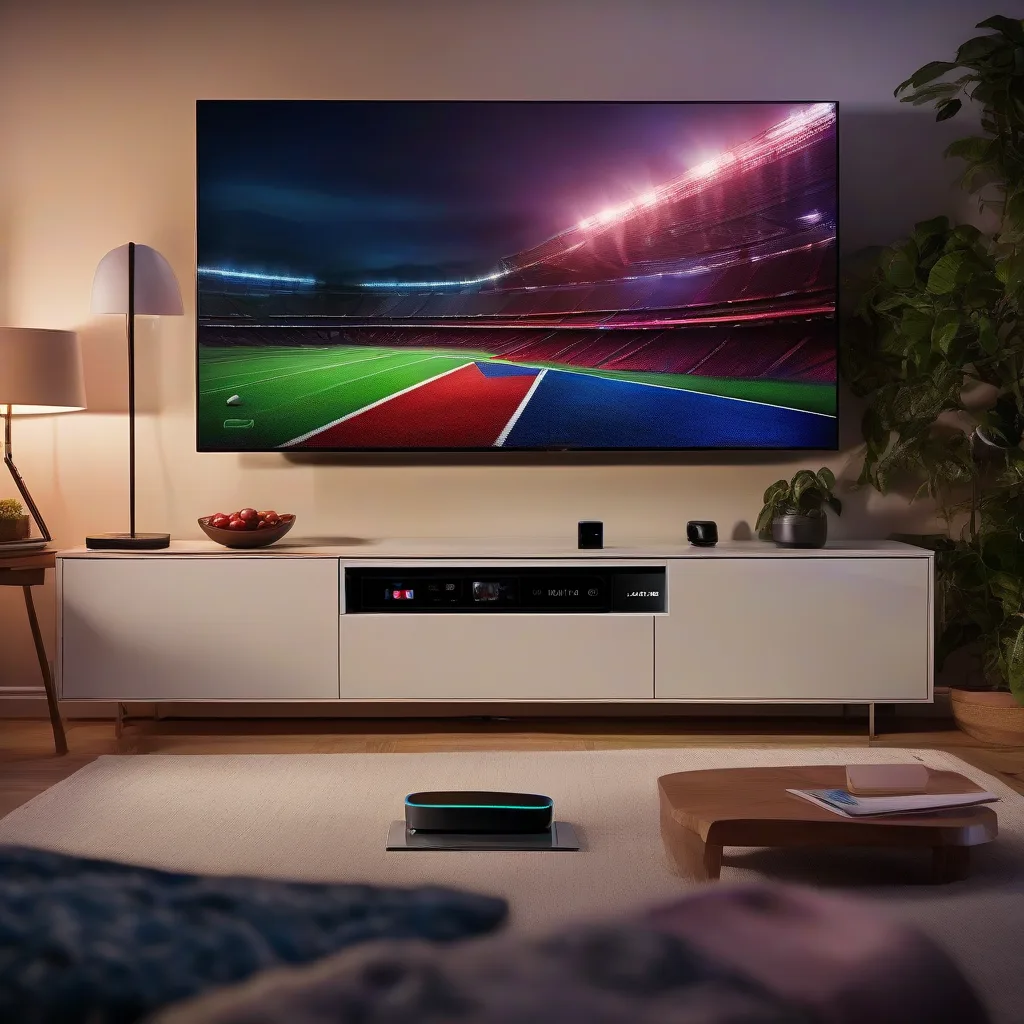
Watch Live Sports & PPV in 4K UHD – No Cable
Whether you’re chasing the latest NFL showdown, a high‑octane boxing match, or a global soccer tournament, the demand for flawless 4K UHD streams is higher than ever. Viking IPTV offers a cable‑free solution that delivers live sports and PPV events with minimal latency, robust channel stability, and full‑HD or 4K picture quality.
Why Choose Viking IPTV for 4K Sports?
- Native 4K UHD streams for compatible events – no up‑scaling needed.
- Over 2,000 live channels, including dedicated sports packages.
- PPV integration for boxing, MMA, and premium events.
- Multi‑device support: Android TV, Fire TV, Apple TV, Roku, Smart TVs, Windows, macOS, iOS, and Android phones.
- 24/7 customer support and a 30‑day money‑back guarantee.
Hardware Requirements for a Seamless 4K Experience
Before diving into the software setup, make sure your hardware can handle a 4K stream:
- Internet Speed: Minimum 25 Mbps download for a single 4K stream; 50 Mbps recommended for multiple devices.
- Router: A dual‑band (2.4 GHz/5 GHz) or Wi‑Fi 6 router with QoS settings to prioritize video traffic.
- Display: 4K‑compatible TV or monitor with HDMI 2.0 or higher.
- Decoding Device: Android TV box, Amazon Fire TV Stick 4K, Apple TV 4K, or a modern Smart TV that supports H.265/HEVC.
- Cable: High‑speed HDMI 2.0 or higher cable to preserve 4K HDR signal.
Step‑By‑Step Setup Guide
1. Create Your Viking IPTV Account
- Visit viking4kiptv.shop and select the 4K Sports package.
- Complete the checkout process. You’ll receive an email with your login credentials and a list of compatible apps.
- Save the username, password, and server URL in a secure place.
2. Install the IPTV App on Your Device
Viking IPTV works with several popular apps. Choose the one that matches your device:
- Android TV / Fire TV: Install IPTV Smarters Pro from the Google Play Store or Amazon Appstore.
- Apple TV: Use GSE Smart IPTV from the App Store.
- Roku: Add the IPTV Smarters channel via the Roku Channel Store.
- Smart TV (WebOS/Tizen): Download Smart IPTV from the TV’s app marketplace.
3. Configure the App
- Open the installed app and choose “Add New Playlist”.
- Select “Login” (instead of URL) and enter the credentials received in the welcome email.
- Enter the server URL exactly as provided (e.g.,
http://viking4kiptv.shop:8080). - Save the profile and let the app load the channel list – this may take 30‑60 seconds.
4. Enable 4K Playback
- Navigate to the app’s settings > Video Quality.
- Select “Auto” or “4K (if available)”. Some events are broadcast only in HD; the app will automatically switch to the highest available resolution.
- Ensure your TV’s picture mode is set to “Game” or “Standard” to reduce processing lag.
5. Test a Live 4K Channel
Open the “Sports” category, locate a channel marked with a 4K badge, and start playback. Verify the following:
- Sharpness and color depth – the image should be crisp with vibrant colors.
- No buffering after the initial 5‑second buffer.
- Audio sync – the sound should match the picture without delay.
Troubleshooting Common Issues
Buffering or Stuttering
- Check bandwidth: Run a speed test on the same network. If you’re below 25 Mbps, consider upgrading your plan or connecting via Ethernet.
- Adjust QoS: Prioritize the IPTV device’s MAC address in your router settings.
- Reduce simultaneous streams: Limit other high‑bandwidth activities (gaming, large downloads) while watching 4K.
No 4K Option Appears
- Confirm the event is actually broadcast in 4K – not all sports are.
- Make sure your device’s firmware is up to date; older firmware may lack HEVC decoding.
- Restart the IPTV app and re‑login to refresh the playlist.
PPV Purchase Not Recognized
- Verify the PPV order email contains a unique “Event ID”.
- In the app, go to “PPV” > “Enter Code” and type the Event ID exactly.
- If the event still doesn’t appear, contact Viking support with the order number.
“A stable 4K stream is only as good as the network feeding it. Investing in a wired Ethernet connection for your primary streaming device eliminates most latency issues.” – Viking IPTV Technical Team
FAQ
Can I watch 4K sports on a mobile phone?
Yes. Install the same IPTV app on iOS or Android, log in with your credentials, and select a 4K‑enabled channel. Mobile 4K streaming requires at least a 5G or 25 Mbps Wi‑Fi connection.
Do I need a special subscription for PPV events?
PPV events are sold separately on the Viking website. After purchase, the event appears in the “PPV” section of the app for 48‑72 hours, depending on the provider.
Is my connection secure?
Viking IPTV uses encrypted HTTPS tunnels for all playlist data. Your login credentials are stored securely on the server and never shared with third parties.
What if my 4K TV shows a “No Signal” message?
Check that the HDMI cable is plugged into an HDMI 2.0 (or higher) port labeled “HDMI‑ARC” or “HDMI‑4K”. Also verify the TV’s input source is set to the correct HDMI channel.
Can I share my Viking IPTV account with family?
Yes. The standard plan allows up to 5 simultaneous streams on different devices. For larger households, consider the “Family” package, which supports up to 10 streams.